Планшеты Apple можно использовать не только для серфинга в интернете и просмотра сериалов на Netflix. Они будут полезны в учебе. Онлайн-занятия, видеоконференции, создание презентаций — со всеми этими задачами справится Айпад. Мы собрали полезные функции планшета для обучения, о которых вы могли раньше не знать, и теперь готовы ими поделиться. 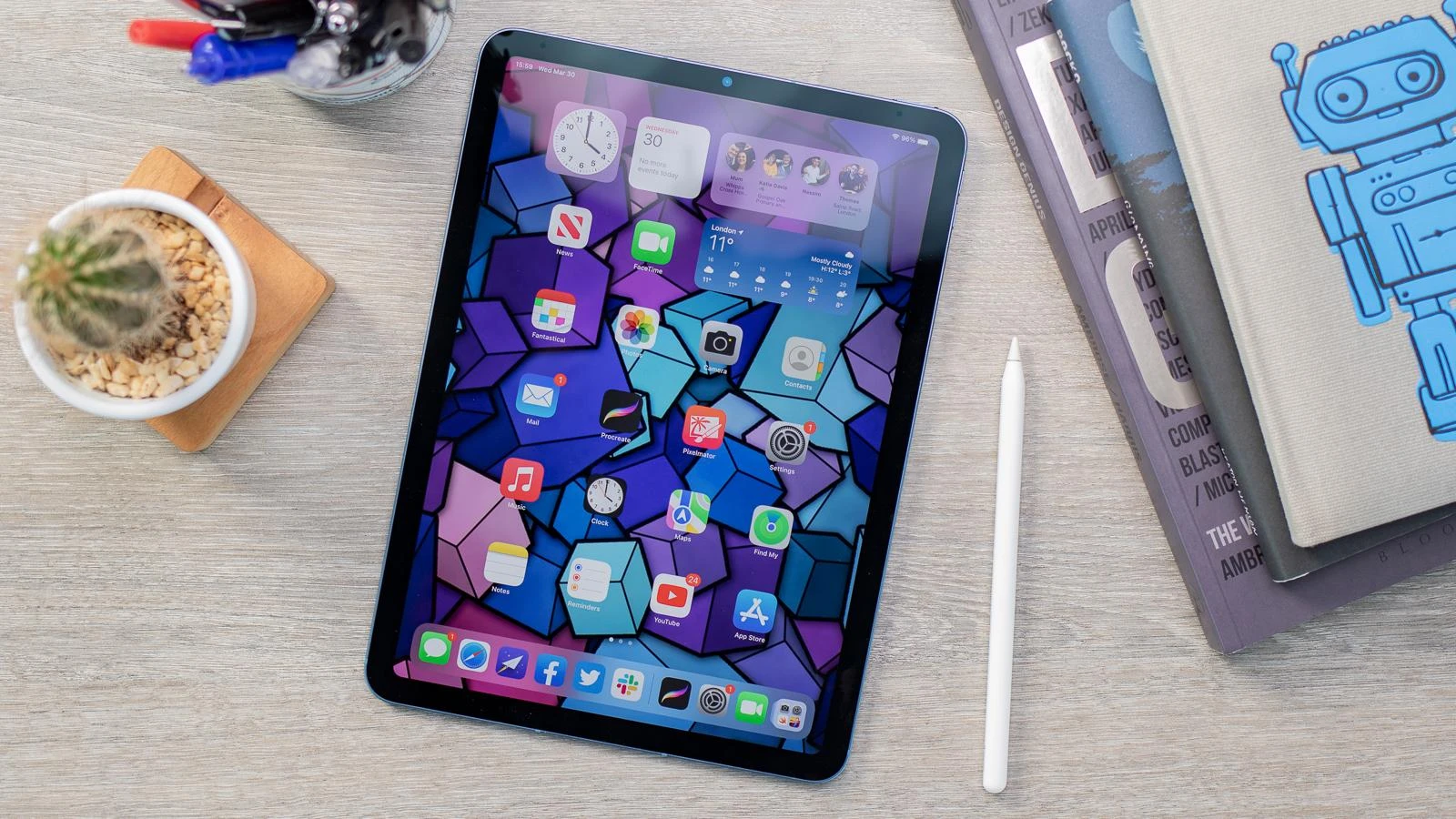
Рисуем блок-схемы
Планирование и рисование блок-схем — важная часть любого обучения. В обновленной ОС 14 появилась функция рисования ровных линий и геометрических фигур, которые помогут составить план, график или схему работы. Функция поддерживает рисование стилусом и пальцем. Чтобы фигурки получались идеально ровными, задержите на секунду палец после рисования — и все выравнивается автоматически.
Картинка в картинке
Любите смотреть фильмы во время работы? Хотите слушать лекции и параллельно вести конспект? Функция «Картинка в картинке» позволит делать несколько дел одновременно. Разместите окно с видео поверх других окон и учитесь с удовольствием.
Компактный режим приложений
Просматривать мессенджер, активировать калькулятор, сверяться с календарем — все это можно делать в компактном режиме. for example, пока идет лекция, можно открыть любую программу или несколько, поверх запущенного видео. Перемещаться между приложениями можно при помощи бокового свайпа, а закрывать ненужные программы – свайпом вверх.
Два окна на одном экране
Написать реферат на основе конспекта, срисовывать график, учить слова, решать примеры из учебника – в любой ситуации возможность параллельно открыть два окна очень пригодится. Потяните любой контент и отпустите его у боковой границы, то же самое проделайте с другим окном/программой. Оба приложения откроются одновременно и ровно поделят экран планшета.
Мультитач
Управление несколькими пальцами облегчает работу с текстовыми редакторами. Главное — знать, какие действия за какую функцию отвечают:
- Три пальца. Свайп влево помогает отменить действие. Свайп вправо — повтор действия. Сведение — копирование текста или изображения. Разведение — вставка скопированного контента.
- Четыре пальца. Свайп вправо помогает переключиться на приложение, Свайп влево — вернуться назад. Свайп снизу до середины — вызов панели многозадачности. Свайп снизу вверх – выход на главный экран.
Плавающая клавиатура
Стандартная клавиатура занимает почти половину экрана планшета. Увеличить площадь обзора можно при помощи «плавающей клавиатуры». Для этого активируйте клавиатуру и сведите на ней два пальца – она превратится в мини-версию, которую можно расположить в любом месте экрана. По размеру мини-клавиатура будет такой же, как в смартфоне.
Sure, что теперь работа с документами и обучение будут комфортнее и эффективнее после наших рекомендаций.